Known issues in Cloudera Data Explorer (Hue)
This topic describes the known issues for Data Explorer in Cloudera Data Warehouse on cloud, version 2025.0.21.2.
Known issues identified in the March 31, 2026 release
- DWX-22690: File browser operation failures for S3 objects with special characters
- In the Data Explorer file browser,
operations fail when file or directory names on S3 contain special characters, such as
#or?. This results in a "File already exists" error from the S3 backend. - DWX-22863: Incorrect Trino query status in Data Explorer query history
- In Data Explorer, the query history for Trino inaccurately displays successfully executed queries as failed. This issue persists in both Azure and AWS clusters. While the UI displays an incorrect status, query execution is not functionally affected.
- CDPD-101177: File upload failure to S3 in Data Explorer
- File uploads to AWS S3 through Data Explorer might fail in both RAZ and non-RAZ environments. This issue occurs because the new storage connector, which is enabled by default to support the boto3 SDK, incorrectly attempts to use a legacy configuration path.
- CDPD-98620: Intermittent 403 authentication failures on ABFS file uploads
- Intermittent file upload failures with a
403 Client
              Error
when uploading to File System. This issue occurs because double slashes in the security token signature are incorrectly shortened to a single slash during internal processing, which corrupts the signature. The issue occurs more frequently with large files using chunked uploads or file names containing underscores. - CDPD-101348: Data Explorer (Hue) administration UI leads to incorrect URL
- The Download logs button in the Data Explorer administration UI currently links to an incorrect or outdated URL, which prevents direct access to diagnostic information and directly downloading server logs through the web interface.
- CDPD-101746: Performance degradation when listing many files/folders in S3
- The S3 file browser turns slow or unresponsive when you attempt to list a large number of files or folders. This occurs because the system makes an excessive number of individual requests to S3 for every file displayed in the directory.
- DWX-23315: Error when accessing the Impala tab in the Jobs browser
- An error occurs when you click a query ID in the editor to open the query profile page if your environment uses an active-passive coordinator setup. This issue exists as a following changes made to support active-active coordinator configurations, preventing access to detailed query metrics in active-passive environments.
Known issues identified before the March 31, 2026 release
- DWX-5650: Data Explorer only makes the first user a superuser for all Virtual Warehouses within a Data Catalog
- Data Explorer marks the user that logs in to
Data Explorer from a Virtual Warehouse for the first time as the Data Explorer superuser. But if multiple Virtual Warehouses are connected
to a single Data Catalog, then the first user that logs in to any one of the Virtual
Warehouses within that Data Catalog is the Data Explorer
superuser.
For example, consider that a Data Catalog DC-1 has two Virtual Warehouses VW-1 and VW-2. If a user named John logs in to Data Explorer from VW-1 first, then he becomes the Data Explorer superuser for all the Virtual Warehouses within DC-1. At this time, if Amy logs in to Data Explorer from VW-2, Data Explorer does not make her a superuser within VW-2.
- CDPD-81320: Inconsistent data source behavior in Data Explorer Table Browser
- When accessing the Data Explorer Table Browser
directly, it defaults to using Hive to load table details, even if Impala is specified as the
data source
source_type=impala. - DWX-17613: Generic error message is displayed when you click on the directory you don't have access to on a RAZ cluster
- You see the following error message when you click on an ABFS directory to which you do not have read/write permission on the ABFS File Browser in Data Explorer: There was a problem with your request. This message is generic and does not provide insight into the actual issue.
- DWX-17109: ABFS File Browser operations failing intermittently
- You may encounter intermittent issues while performing typical operations on files and directories on the ABFS File Broswer, such as moving or renaming files.
- DWX-16895: Incorrect status of Data Explorer pods when you edit the Data Explorer instance properties
- When you update a configuration of a Data Explorer instance that is deployed at the environment level, such as increasing or decreasing the size of the Data Explorer instance, you see a success message on the Cloudera Data Warehouse UI. After some time, the status of the Data Explorer instance also changes from “Updating” to “Running”. However, when you list the Data Explorer pods using kubectl, you see that not all backend pods are in the running state–a few of them are still in the init state.
- DWX-16893: A user can see all the queries in Job browser
- In a Data Explorer instance deployed at the environment level, by design, the Data Explorer instances must not share the saved queries and query history with other Data Explorer instances even for the same user. However, a logged in user is able to view all the queries executed by that user on all the Virtual Warehouses on a particular Database Catalog.
- DWX-14927: Data Explorer fails to list Iceberg snapshots
- Data Explorer does not recognize the Iceberg
history queries from Hive to list table snapshots. For example, Data Explorer indicates an error at the . before history when you run the
following query.
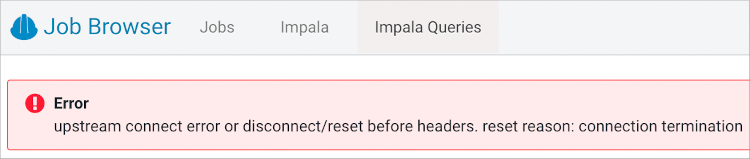
select * from <db_name>.<table_name>.history - DWX-14968: Connection termination error in Impala queries tab after Data Explorer inactivity
- To reproduce the problem: 1) In the Impala job browser, navigate to
Impala queries. 2) Wait for a few minutes.After a few minutes of inactivity, the follow error is displayed:
- DWX-15115: Error displayed after clicking on hyperlink below Data Explorer table browser
- In Data Explorer, below the table browser, clicking the hyperlink to a location causes an HTTP 500 error because the file browser is not enabled for environments that are not Ranger authorized (RAZ).
- DWX-8460: Unable to delete, move, or rename directories within the S3 bucket from Data Explorer
- You may not be able to rename, move, or delete directories within your S3 bucket from the Data Explorer web interface. This is because of an underlying issue, which will be fixed in a future release.
- DWX-15090: CSRF error intermittently seen in the Data Explorer Job Browser
- You may intermittently see the “403 - CSRF” error on the Data Explorer web interface as well as in the Data Explorer logs after running Hive queries from Data Explorer.
- CDPD-27918: Data Explorer does not automatically pick up RAZ HA configurations
- On a Cloudera on cloud environment in which you have configured RAZ in High Availability mode, Data Explorer in Cloudera Data Warehouse does not pick up all the RAZ host URLs automatically. Therefore, if a RAZ instance to which Data Explorer is connected goes down, Data Explorer becomes unavailable.
- You must manually add comma-separated RAZ instances in the Hue
Advanced Configuration Snippet.
- Log in to the Cloudera Management Console as an Administrator.
- Go to and open Cloudera Manager for your environment.
- Go to and note the value of the
fs.s3a.ext.raz.rest.host.urlproperty from thecore-site.xmlfile. You need this to specify the value of theapi_urlproperty in the Data Explorer configuration.For Azure environments, note the value of the
fs.azure.ext.raz.rest.host.urlproperty.For AWS and GCS environments, note the value of the
fs.s3a.ext.raz.rest.host.urlproperty. - Go to Cloudera Data Warehouse > Virtual Warehouse >
 > Edit > CONFIGURATIONS and select the hue-safety-valve from the
Configuration files dropdown menu.
> Edit > CONFIGURATIONS and select the hue-safety-valve from the
Configuration files dropdown menu. - Add the following lines in the hue-safety-valve
field:
[desktop] [[raz]] is_enabled=true api_url=https://[***INSTANCE-1***]:6082/,https://[***INSTANCE-2***]:6082/ - Click Apply Changes.